Accueil | Certifications | Compétences | Projets | Scripts
Zabbix 7.4 - Installation basique (Apache2/MySQL)
Pré-requis :
- OS : Linux (Ubuntu Server 24.04 ici)
- Stockage : dépend de l’usage (pour un mois de conservation des données dans notre exemple)
Pour installation/tests :
- CPU : 2
- RAM : 2-4 Go
- Stockage : SSD 50 Go
Pour un environnement de moyenne taille (1000 métriques) :
- CPU : 4
- RAM : 8-16Go
- Stockage : SSD 200 Go minimum
Pour une grande infrastructure (> 100 000 métriques) :
- CPU : 16
- RAM : 64+ Go
- Stockage : SSD 1To
Installation
- Se mettre en root
sudo su - Télécharger/extraire le .deb du repo Zabbix
wget https://repo.zabbix.com/zabbix/7.4/release/ubuntu/pool/main/z/zabbix-release/zabbix-release_latest_7.4+ubuntu24.04_all.deb dpkg -i zabbix-release_latest_7.4+ubuntu24.04_all.deb apt update - Installation Zabbix server, avec le frontend (l’interface Web pour le management) et l’agent
apt install zabbix-server-mysql zabbix-frontend-php zabbix-apache-conf zabbix-sql-scripts zabbix-agent - Installer la base de données (ici mysql-server)
apt install mysql-server - Lancer la configuration sécurisée de Mysql
mysql_secure_installation
a. Faire Y ou Yes
Securing the MySQL server deployment.

Connecting to MySQL using a blank password.

VALIDATE PASSWORD COMPONENT can be used to test passwords
and improve security. It checks the strength of password
and allows the users to set only those passwords which are
secure enough. Would you like to setup VALIDATE PASSWORD component?

Press y|Y for Yes, any other key for No: Y
b. Faire 2 pour choisir un mot de passe complexe
There are three levels of password validation policy:

LOW    Length >= 8
MEDIUM Length >= 8, numeric, mixed case, and special characters
STRONG Length >= 8, numeric, mixed case, special characters and dictionary

Please enter 0 = LOW, 1 = MEDIUM and 2 = STRONG: 2
c. Répondre y sur les deux questions
Skipping password set for root as authentication with auth_socket is used by default.
If you would like to use password authentication instead, this can be done with the "ALTER_USER" command.
See https://dev.mysql.com/doc/refman/8.0/en/alter-user.html#alter-user-password-management for more information.

By default, a MySQL installation has an anonymous user,
allowing anyone to log into MySQL without having to have
a user account created for them. This is intended only for
testing, and to make the installation go a bit smoother.
You should remove them before moving into a production
environment.

Remove anonymous users? (Press y|Y for Yes, any other key for No) :y

Normally, root should only be allowed to connect from
'localhost'. This ensures that someone cannot guess at
the root password from the network.

Disallow root login remotely? (Press y|Y for Yes, any other key for No) : y
d. Faire y
Reloading the privilege tables will ensure that all changes
made so far will take effect immediately.

Reload privilege tables now? (Press y|Y for Yes, any other key for No) : y
- Création de la base de données (pensez à changer le mot de passe !)
mysql -uroot -pmysql> create database zabbix character set utf8mb4 collate utf8mb4_bin; mysql> create user zabbix@localhost identified by 'InsérezMotDePasse123!'; mysql> grant all privileges on zabbix.* to zabbix@localhost; mysql> FLUSH PRIVILEGES; mysql> set global log_bin_trust_function_creators = 1; mysql> quit; - Import du schéma de la base de données
zcat /usr/share/zabbix/sql-scripts/mysql/server.sql.gz | mysql --default-character-set=utf8mb4 -uzabbix -p zabbix - Désactivation du log_bin_trust_function_creators
mysql -uroot -p mysql> set global log_bin_trust_function_creators = 0; mysql> quit; - Modifier le fichier Zabbix /etc/zabbix/zabbix_server.conf
DBPassword=InsérerMotDePasse123! - Redémarrage des services Apache + activation au démarrage de la machine
systemctl restart zabbix-server zabbix-agent apache2 systemctl enable zabbix-server zabbix-agent apache2 - Se connecter à l’URL du serveur avec un navigateur Web :
http://IP_du_Serveur/zabbix -
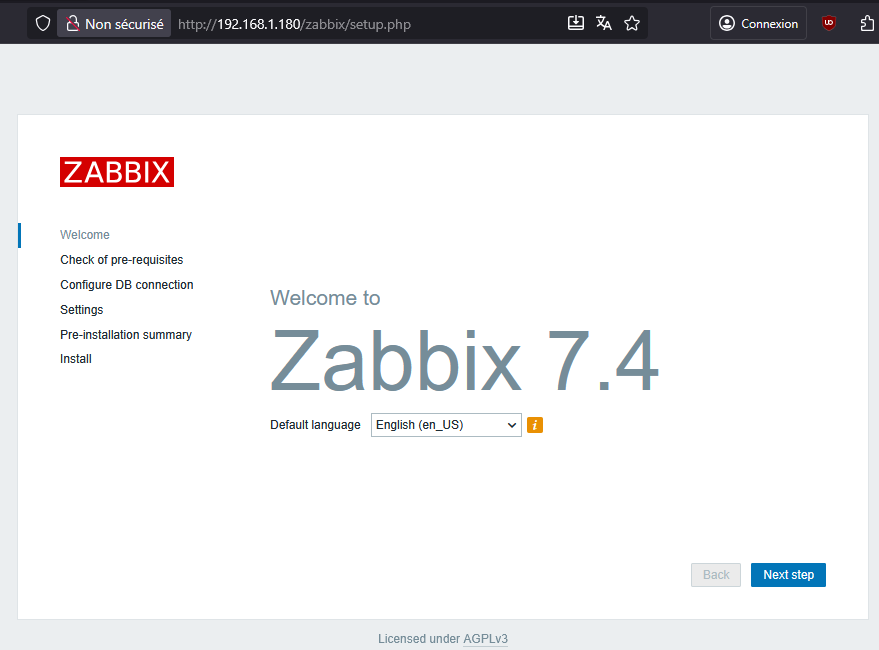
Choisir la langue et Faire Next step
-
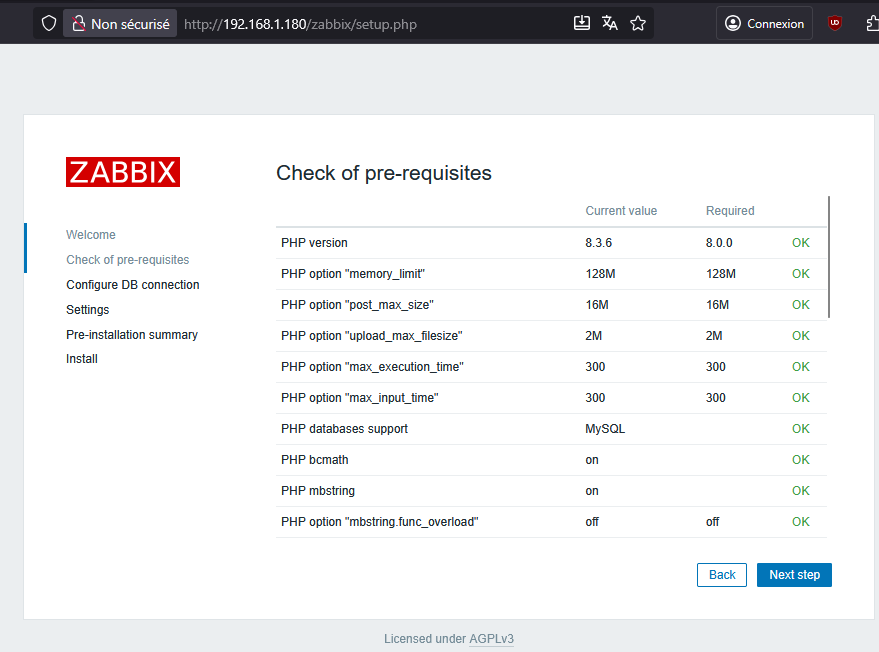
Vérifier que tous les pré-requis sont “ok” et valider
-
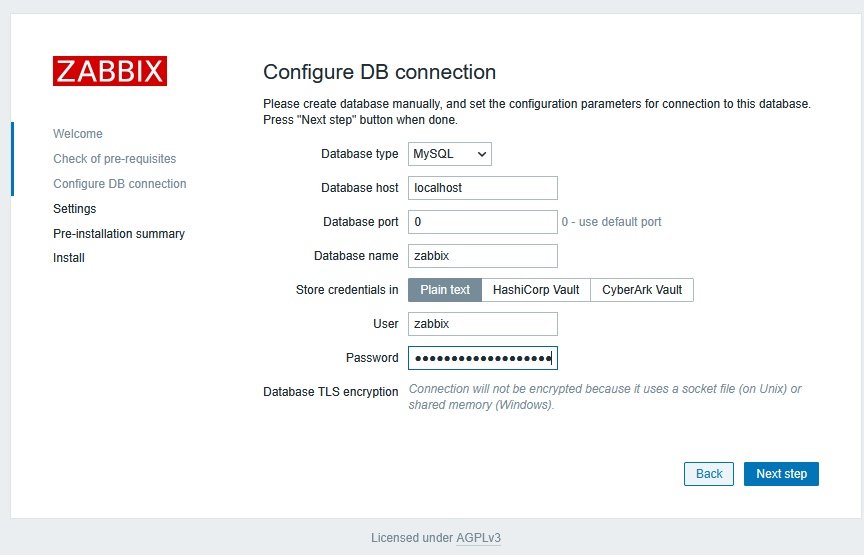
Insérer le mot de passe de la base de données et faire “Next Step”
-
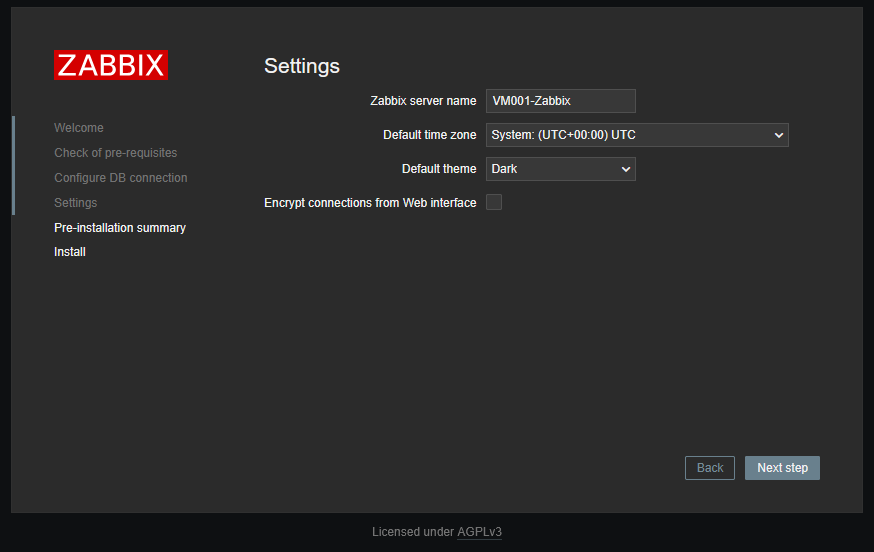
Insérez le nom de la VM, définir le fuseau horaire et le thème par défaut
-
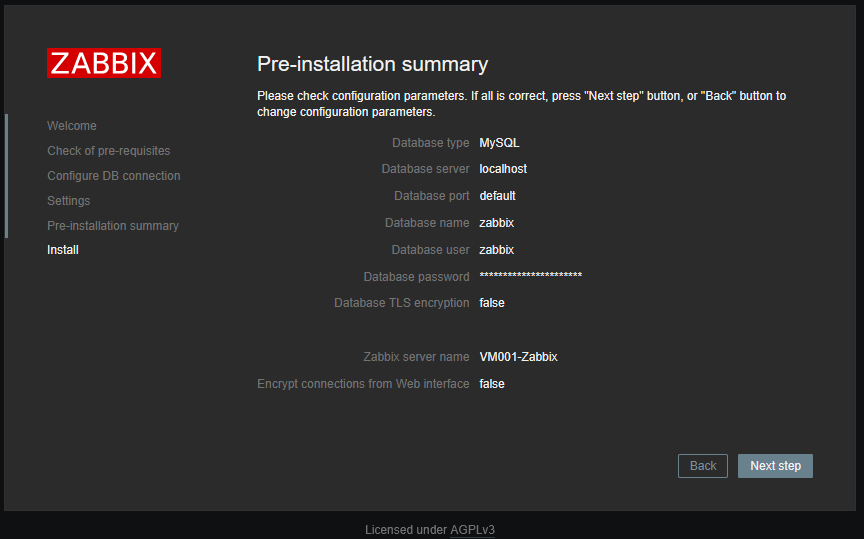
Valider le récapitulatif
-
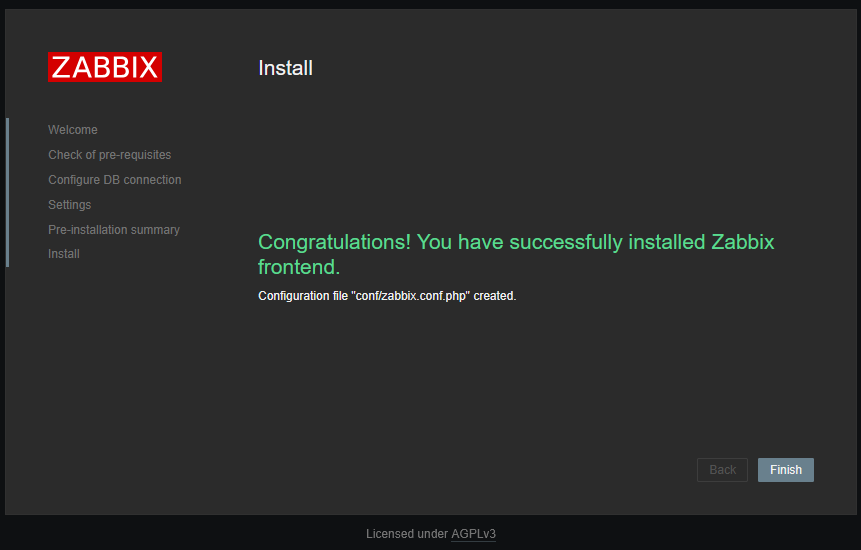
Installation Terminée
-
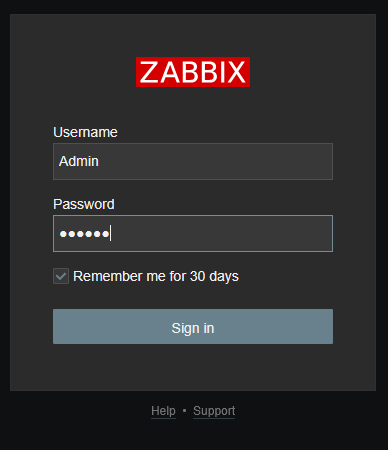
Se connecter avec les identifiants par défaut (Admin/zabbix)
- Zabbix installé !